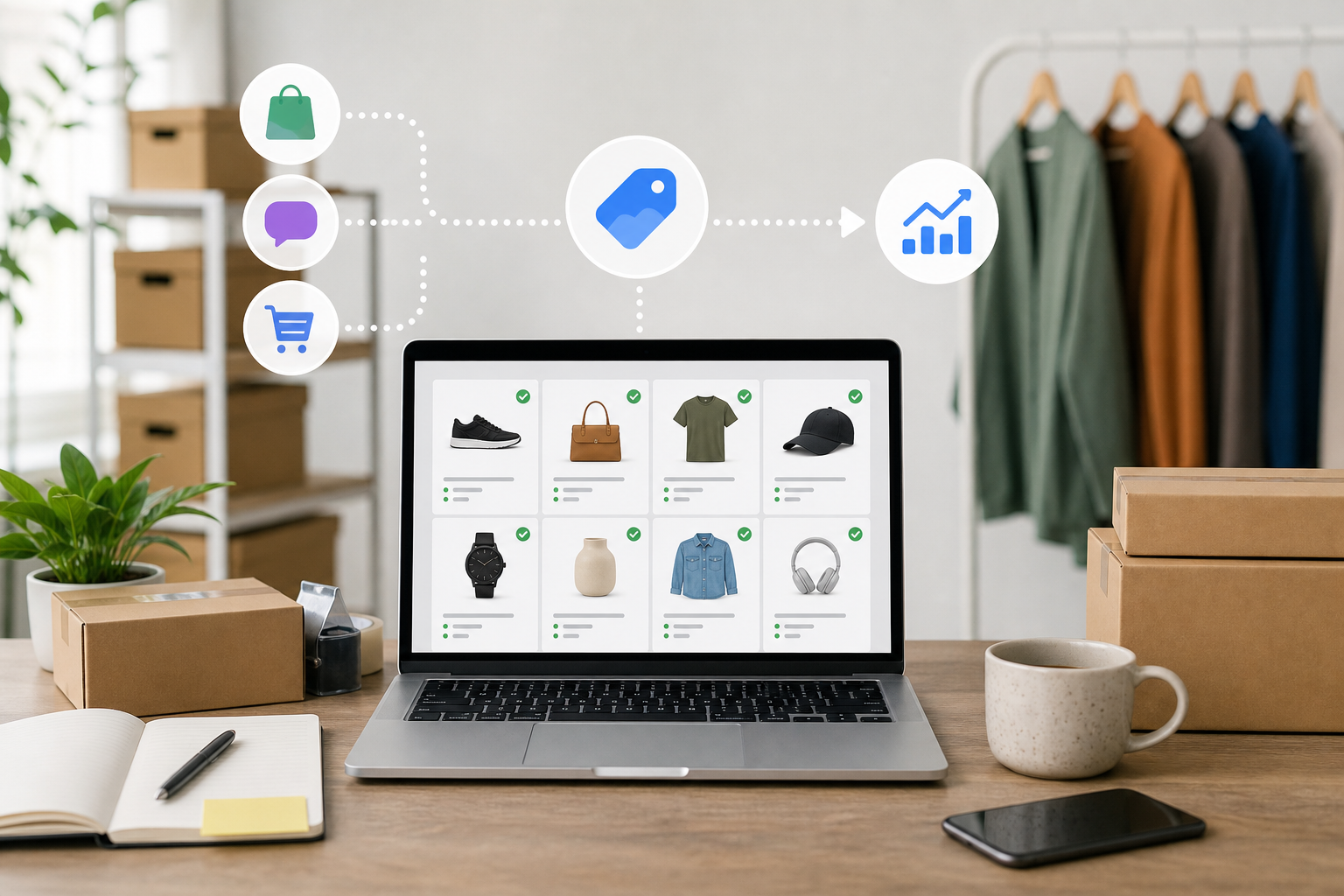

Merchant Center disapprovals can stop eligible products from appearing in Google Shopping. This practical guide explains the most common India-specific feed and website mismatches, how to diagnose them, and what to check before requesting a review.
A product can be available on your website and still disappear from Google Shopping because the information submitted to Merchant Center does not agree with what a shopper sees. A ₹1,999 price in the feed, ₹2,099 on the product page, a delivery promise that excludes the shopper’s pincode, or a variant that is shown as available when it is not can all create problems.
For an Indian ecommerce team, the difficult part is usually not finding the error. It is finding the source of the error. A feed may be generated by Shopify, WooCommerce, an ERP, a marketplace connector, a custom API or a spreadsheet. Editing the product manually in Merchant Center may appear to solve the issue, but the next scheduled update can overwrite that change.
This guide explains how to diagnose Google Merchant Center disapprovals in India, separate product issues from account or feed issues, and correct the underlying data before requesting a review.
What a Merchant Center disapproval means
A disapproval means that Google has decided a product, feed, website destination or account does not currently meet the requirements for showing products in a particular destination or country. It does not always mean that the entire account has been suspended.
First identify the level of the problem:
- Product-level disapproval: one or more products have an issue, such as a price mismatch, missing identifier or incorrect availability.
- Feed-level failure: Google cannot fetch, parse or process the submitted file or API data. Invalid XML, authentication problems, encoding errors and malformed values can affect many products.
- Account-level policy issue: the problem concerns the business, website, products or account as a whole. Repeatedly editing individual products will not resolve this type of issue.
- Destination or website issue: product pages are inaccessible, misleading, broken, blocked from crawling or inconsistent with the submitted data.
A warning is not the same as a disapproval. However, warnings can point to data quality problems that later become more serious, so they should not be ignored when they affect important products.
The first 15-minute triage in Merchant Center
Do not begin by changing the feed at random. Start with the issue details for an affected product or group of products in Merchant Center Diagnostics. Record the following:
- The exact issue title and description.
- The product ID, item ID or SKU affected.
- The affected country and selling destination.
- Whether the issue is a warning, product disapproval, feed failure or account-level notice.
- The date and time when Google last processed the data.
- Whether the issue affects all products, one category, one brand, one variant or products updated recently.
Then inspect one affected product from end to end. Open the product page in an incognito window, select the relevant size or colour, add it to the cart and proceed far enough to check price, shipping and availability. Use a phone as well as a desktop because mobile rendering, location selection and variant controls can behave differently.
Do not assume that the feed is the only source Google checks. Google may compare submitted attributes with the product page, visible page content, structured data, cart and checkout. A feed-only correction can therefore leave the disapproval unresolved.
Price mismatch fixes for Indian stores
Price issues are common because ecommerce platforms often have several price fields: regular price, sale price, tax-inclusive price, variant price, coupon price and checkout price. The submitted value must represent the price a shopper can actually pay under the conditions shown.
Check these fields together:
- Feed price: confirm the amount and currency submitted for the exact product or variant.
- Product-page price: check the visible price before a coupon, membership discount or login-only benefit.
- Sale price: confirm that it is lower than the regular price and that the sale period and display are correctly configured.
- Structured data: check the price and currency in Product or Offer markup. It should describe the same purchasable offer shown on the page.
- Cart and checkout: verify whether the price changes after selecting a variant, entering a pincode, choosing a quantity or moving to checkout.
- Currency: confirm that the feed, page, structured data and checkout use INR consistently for the target market.
GST or tax presentation needs careful handling. Some stores display an inclusive price, while others show a base price and add tax later. Do not simply add or remove GST in the feed to make a number look correct. Align the submitted price with the legally and commercially applicable price presentation on your website, and ensure the same basis is used in structured data and checkout.
For example, if the feed shows ₹1,999, the page shows ₹1,999, but checkout adds a mandatory charge that makes the product cost ₹2,099, investigate the price structure rather than changing only the feed. If a sale price is visible only after a coupon, it may not be suitable as the standard sale price submitted for the product.
Variant problems need separate testing. A product page may show “from ₹999”, while the selected red, large-size variant costs ₹1,299. The feed should identify and price the actual offer correctly, and the landing page should open with the same variant where the platform supports that behaviour.
Availability and inventory errors
Availability mismatches often come from delayed inventory synchronisation. A product is marked in_stock in an XML file, but the website blocks purchase, the selected variant is unavailable, or the store does not deliver to the shopper’s location.
Compare the following states:
- The feed value: usually such as in stock, out of stock, preorder or backorder.
- The product-page message and purchase button.
- The selected variant’s actual inventory.
- The cart response after adding the item.
- The checkout response after entering an Indian pincode.
- The inventory timestamp and update frequency.
Do not label an item as in stock merely because the parent product has inventory. If only one size or colour is available, each submitted variant must accurately represent its own status. Check whether your platform sends zero-stock variants, hidden variants or discontinued SKUs through the feed.
Preorder and backorder values should be used only when the product page clearly explains the expected fulfilment condition. If an item is temporarily unavailable, it is usually safer to update the feed through the inventory source than to leave it marked in stock while hoping the next crawl will correct it.
For stores serving multiple regions, availability may depend on the delivery pincode. A product can be physically available but unavailable for a particular service area. Make the delivery limitation clear on the product page and ensure the submitted availability and shipping information do not imply universal delivery when that is not true.
Shipping and delivery checks for India
Shipping errors are not limited to the shipping settings inside Merchant Center. Google may also assess whether the delivery information shown to the shopper is consistent with the submitted configuration.
Review:
- Shipping country and service area.
- Shipping charge, including free-shipping thresholds.
- Order-value conditions and product-level shipping overrides.
- Delivery time or handling-time settings.
- Whether remote areas, selected states or specific pincodes are excluded.
- Whether the product page and checkout show the same practical delivery expectation.
- Whether cash on delivery is available only in selected locations or for selected order values.
Indian stores commonly use pincode-based shipping calculators. Test pincodes from Kolkata, Delhi, Mumbai, Bengaluru and a remote or difficult-to-serve location if those areas are within your target market. The purpose is not to promise delivery everywhere. It is to ensure that the website does not make a broad delivery claim while the checkout silently rejects many locations.
COD should not be presented as universally available if it is restricted by pincode, product type, order value or customer history. COD is not the same as free delivery, so keep those messages separate. Also check whether shipping charges are added only at checkout while the product page displays “free shipping” without conditions.
If shipping is calculated by a third-party courier tool, confirm that the feed or Merchant Center shipping settings reflect the same logic. A product-level override may be necessary for heavy, fragile or restricted items. Correct the underlying shipping rule where possible instead of maintaining many manual exceptions.
Policy and product-data disapprovals
Some disapprovals are caused by missing or unreliable product data. Others relate to the product category, business practices or claims made on the website.
Check the following product data:
- Title and description accurately describe the product without exaggerated or misleading claims.
- Brand, manufacturer or identifier information is populated correctly where applicable.
- GTINs are genuine and belong to the submitted product. Do not create a random GTIN to fill a required field.
- MPNs and brand values are consistent across variants and catalogue systems.
- Product condition is accurately submitted.
- Age, size, colour, gender or material attributes are used correctly where relevant.
- Restricted or regulated product categories are reviewed against the applicable Google requirements before promotion.
Website policy pages also matter. Make returns, refunds, cancellation, contact and payment information easy to find and consistent with the actual buying process. Avoid claims such as “guaranteed result”, “100% risk-free” or “official” unless they are accurate and supportable.
An account-level policy notice needs a business-level response. Review the affected website, product range, contact details, payment flow, returns process and promotional claims together. Do not submit repeated reviews while the same underlying issue remains across several pages.
Image and landing-page problems
A product image can be technically present but still unsuitable. Inspect the primary image and the image shown after selecting the variant.
Look for:
- Large text, promotional banners or excessive graphic overlays.
- Watermarks or logos that obscure the product.
- Images that show a different colour, pack size or model from the submitted offer.
- Low-resolution, broken or placeholder images.
- Incorrect image URLs, blocked resources or images that require a login.
- Images of accessories that are not included in the purchase.
Then test the landing page. The URL should open the intended product without an unexpected redirect, error, forced app download or location block. Check canonical and redirect behaviour, mobile page loading, cookie banners, pop-ups, HTTPS, robot restrictions and whether the product can be understood without an account.
A page that loads for your team in India may behave differently for Google’s crawler or for a shopper outside a selected city. Ask the developer to check server logs and access rules if products are repeatedly reported as unavailable or inaccessible.
Feed-specific errors and stale data
Feed errors need a different fix from product-page mismatches. Check whether the scheduled feed was fetched successfully and whether the latest file contains the change you made.
Common technical problems include:
- Missing required attributes.
- Invalid XML or CSV structure.
- Incorrect attribute names or unsupported values.
- Improper currency, date or decimal formatting.
- Character encoding issues affecting Indian language text or special characters.
- Duplicate identifiers for different products.
- Invalid URLs or image URLs.
- Authentication failures for an API or private feed.
- A scheduled feed pointing to an old file.
- Stale API data caused by failed jobs, caching or a broken inventory connection.
Use one known affected SKU and trace it from the ecommerce platform to the connector, feed file or API payload, then into Merchant Center. If the platform is the system of record, fix the catalogue or integration. If a feed rule is transforming the value incorrectly, fix the rule. Manual edits should be reserved for controlled exceptions, not recurring catalogue problems.
A practical mismatch-audit worksheet
Use this worksheet for one affected product first. The same method can then be applied to a sample of products from each category or integration.
| Field | Merchant Center | Feed or API | Product page | Structured data | Cart and checkout |
|---|---|---|---|---|---|
| Product ID or SKU | Exact ID | Exact ID | Correct product | Matching SKU if used | Same item |
| Price and currency | Submitted value | Source value | Visible variant price | Offer price and INR | Final applicable price |
| Availability | Submitted status | Inventory status | Purchase message | Availability value | Add-to-cart result |
| Variant | Variant ID | Size or colour | Selected option | Offer variant | Selected option |
| Shipping | Configured rule | Override if any | Delivery statement | Usually not applicable | Pincode charge and ETA |
| Image and URL | Submitted URLs | Source URLs | Visible page and image | Image and page URL | Page remains accessible |
Record the time of each check. This helps identify a synchronisation delay instead of treating every difference as a permanent configuration error.
Reprocessing and requesting a review
After correcting the source, allow the updated feed or API data to be processed. The exact timing depends on the data source, crawl and issue type, so do not promise a fixed approval period to your team or client.
Use this sequence:
- Correct the catalogue, inventory system, website, shipping configuration or feed rule.
- Confirm that the updated value is present in the actual feed or API payload.
- Check the live product page, structured data, cart and checkout again.
- Refresh or fetch the feed where the interface provides that option.
- Monitor Diagnostics for reprocessing and any new issue.
- Request a review only when the correction is complete and the affected products are genuinely compliant.
Keep evidence such as the old and new feed row, screenshots of the product page, checkout tests, shipping configuration and deployment timestamp. This is useful for internal troubleshooting and for explaining what was changed if a review does not resolve the issue.
Repeated review requests do not replace a correction. If the same mismatch remains, investigate the integration, page template or policy issue rather than submitting another request immediately.
Prevention checklist for Indian ecommerce teams
- Assign one owner for product data quality and one technical owner for the feed or API.
- Use a single catalogue source for price, stock, variant and identifier data.
- Set alerts for feed fetch failures and large changes in price or availability.
- Test sale pricing before and after a promotion starts and ends.
- Run pincode tests for delivery charge, serviceability and estimated delivery.
- Review COD wording and restrictions on the product page and checkout.
- Test mobile product pages, variant selectors, cart and payment steps after major releases.
- Check structured data after theme, plugin or ecommerce-platform changes.
- Review Diagnostics regularly, not only when a campaign stops spending.
- Sample products from every important category, brand and fulfilment rule.
Quick decision tree
- Price issue: compare feed, page, structured data, variant and checkout. Fix the price source and tax or sale-price logic.
- Availability issue: test the exact variant, cart and pincode. Repair inventory synchronisation or update the status.
- Shipping issue: compare Merchant Center rules with pincode results, charges, COD conditions and delivery messaging.
- Policy issue: inspect the whole website, product category, claims, returns information and account notice.
- Image issue: replace inaccurate, overlaid, watermarked, broken or low-quality images.
- Feed issue: validate the file or API, identifiers, formats, encoding, URLs and scheduled source.
- Destination issue: test redirects, mobile rendering, crawler access, HTTPS and the complete buying path.
Conclusion
Google Merchant Center disapprovals in India are usually a data-consistency problem before they are a campaign-management problem. The fastest reliable approach is to start with Diagnostics, isolate one affected product, and compare Merchant Center with the feed, live page, structured data, cart and checkout.
Do not keep editing products manually if the catalogue, inventory API or feed rule is creating the error. Correct the system of record, validate Indian pricing and delivery conditions, allow the data to reprocess, and request a review only after the complete customer journey is accurate. As a practical next step, choose one high-value disapproved SKU today and complete the mismatch-audit worksheet before changing anything else.
About Sanat Haldar
Sanat Haldar is a digital marketing consultant and website developer based in Kolkata, working across SEO, Google Ads, Local SEO, performance marketing and conversion-focused websites. For businesses working on Google Ads services, the relevant service page explains the approach, scope and next steps.