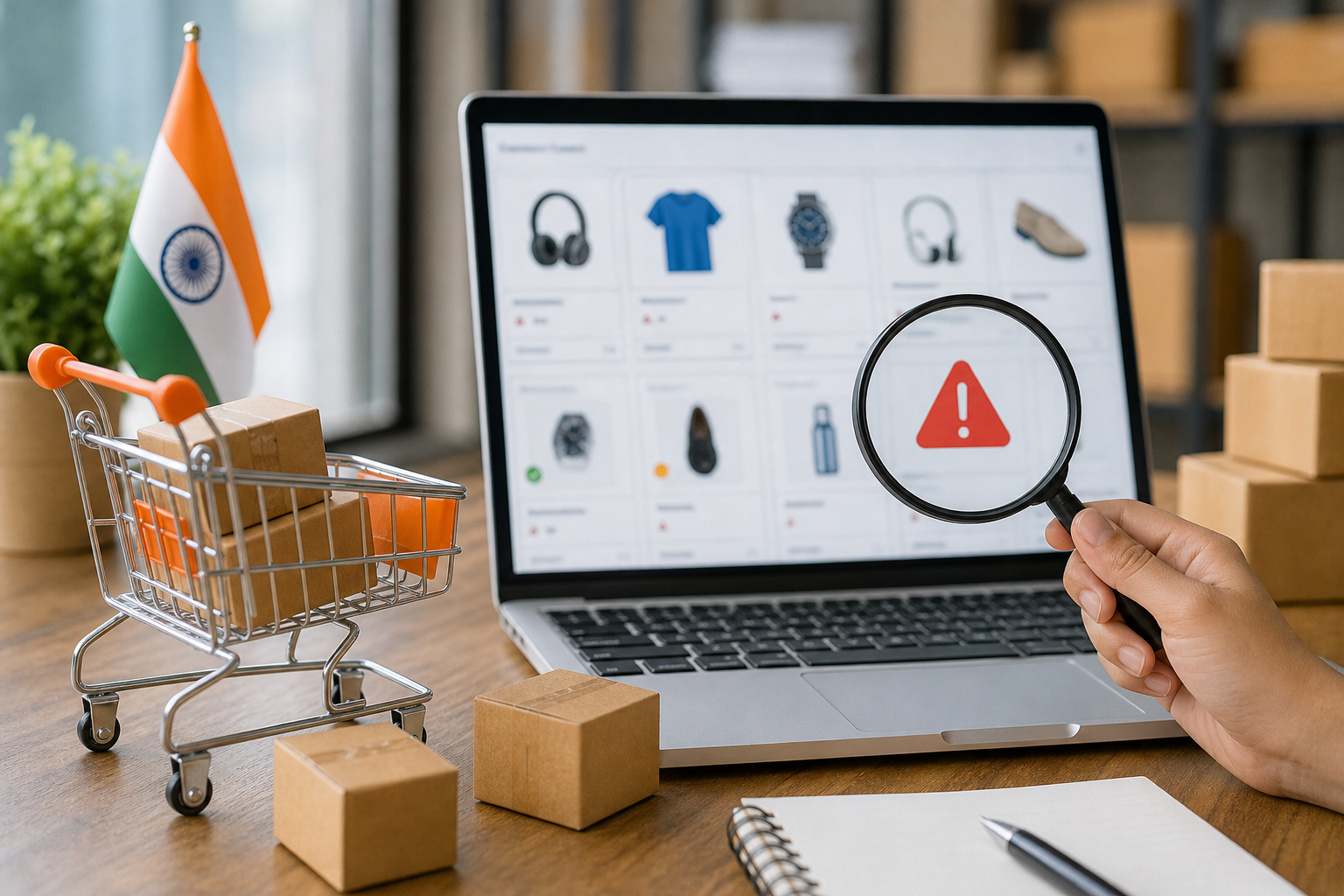
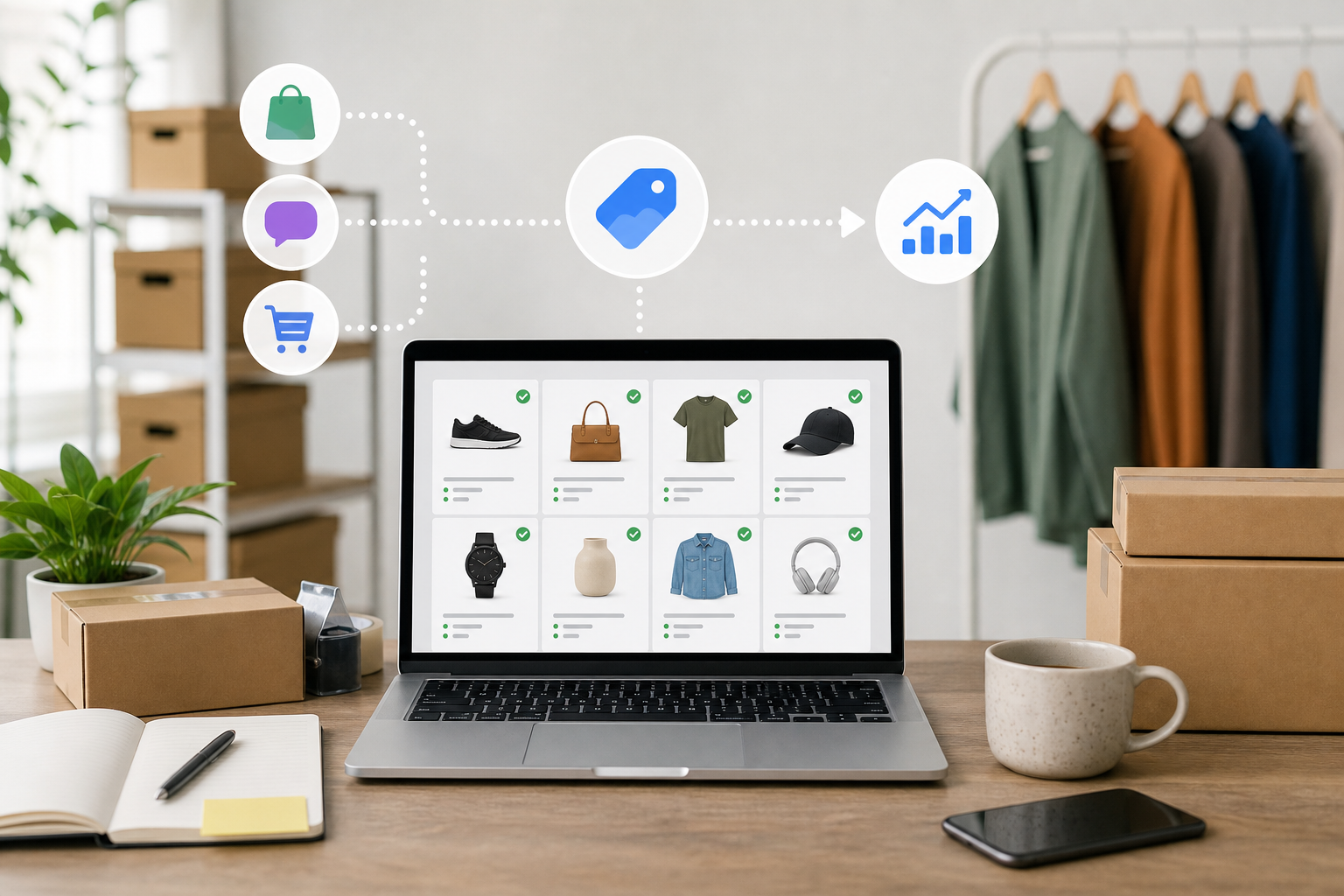
Your online store may be technically complete, but Google cannot promote products effectively without a reliable product feed. This guide explains the setup decisions, required data, country-specific settings, diagnostics, and ongoing maintenance small ecommerce teams need before investing in Shopping campaigns.
Your online store can be fully designed, accept payments and rank reasonably well in organic search, yet still be unable to show products properly across Google. The usual reason is not a broken homepage. It is incomplete or unreliable product data.
Google needs a structured record for every product: what it is, how much it costs, whether it is available, where it can be bought, how it is delivered and whether the offer follows policy. A product feed provides that record through Google Merchant Center. Without it, a small ecommerce business cannot properly prepare for free product listings or Shopping campaigns.
This guide explains how to complete Google Merchant Center product feed setup for a Shopify, WooCommerce or custom ecommerce store in India. It also covers the decisions that matter after the initial connection, because feed maintenance is an operating task, not a one-time upload.
What a Google Merchant Center product feed does
Merchant Center is the product-data layer between your ecommerce website and Google’s product surfaces. It receives information from your store and uses that information to understand which products may be eligible for free product listings and paid Shopping activity.
A feed does not replace your website, product SEO or Google Ads account. It connects them. Your product page remains the place where customers see details and complete the purchase. Merchant Center passes Google the information needed to represent that product accurately before a shopper reaches the page.
For example, a product feed may tell Google that a cotton kurta has the ID KURTA-BLUE-M, costs ₹1,299, is available, has a particular image, belongs to a relevant category and can be purchased at a specific URL. If the page displays ₹1,499 or says “out of stock”, Google may treat the mismatch as a quality or compliance issue.
This makes feed setup relevant to three teams at once:
- Development: the store must expose reliable product, price, stock and checkout information.
- SEO: titles, descriptions, categories, structured data and landing pages must describe the same product consistently.
- Performance marketing: campaigns need approved, current products and usable conversion destinations.
Check the store before creating the feed
Do not begin by uploading products. First confirm that the store is ready to be reviewed. Merchant Center may identify problems that are actually website, fulfilment or policy problems.
Check these areas:
- Website ownership: you or your developer must be able to verify the domain in the relevant Google account.
- Product availability: products submitted to Google should be real, purchasable items with clear stock status.
- Product pages: every submitted product should have a working page with a clear title, price, description, images and purchase information.
- Checkout: a customer should be able to add the item to the cart, enter delivery details and understand the available payment options.
- Contact information: provide a business email, phone number or other practical customer support method.
- Shipping information: state where you deliver, expected delivery timelines and any location restrictions.
- Return and refund information: make the policy easy to find and consistent with what customers see during checkout.
- Mobile usability: product pages and checkout should work on common mobile devices, since product discovery frequently happens on mobile.
If you sell regulated, restricted or personalised products, review Google’s applicable product and advertising policies before investing time in a large feed. Approval is not guaranteed simply because a product exists on your website.
Create and configure the Merchant Center account
Create or access Merchant Center using a business-owned Google account rather than an employee’s personal account. Add the business name, website and contact details, then verify and claim the website. Keep administrator access with the business even if an agency or developer handles implementation.
During configuration, pay particular attention to the following settings:
- Target country: select India if India is the market in which the submitted offer is available.
- Language: use the language that matches the product information and landing pages in the feed.
- Currency: use Indian rupees for products sold and displayed in INR. Do not rely on a currency conversion to hide a mismatch between the feed and the website.
- Business details: use a real business name and accurate contact information.
- Free product listings: review the relevant programme and account requirements so eligible products can be considered for free visibility.
- Shipping and returns: configure these details in Merchant Center and ensure they agree with the website.
Google’s navigation and programme names can change. Follow the current prompts in your account, but do not skip the underlying checks: country, currency, fulfilment, returns and website transparency.
Choose the right feed method
The best feed method depends on how often your catalogue changes and how much control your team needs. A technically sophisticated method is not automatically better for a small store.
| Method | Suitable for | Main trade-off |
|---|---|---|
| Shopify app or channel integration | Small to medium Shopify catalogues | Quick to launch, but field mapping and app behaviour need checking |
| WooCommerce plugin | WordPress stores with manageable catalogues | Flexible, but plugin conflicts, attributes and scheduled updates require attention |
| Scheduled file | Businesses with an export from their store or ERP | Reliable when maintained, but stale files can create stock and price issues |
| Google Sheets | Very small catalogues with infrequent changes | Easy to understand, but manual updates do not scale well |
| Content API or custom integration | Complex catalogues, multiple warehouses or frequent changes | Greater control, but requires development, monitoring and maintenance |
For most small Shopify businesses, start with the official or well-supported platform connection and inspect the resulting data before adding custom work. For WooCommerce, select a maintained plugin that supports the required product attributes and scheduled synchronisation. A custom store may need a generated XML or delimited file, an API connection or a bespoke feed service.
Do not use a manual spreadsheet as a permanent solution if stock changes several times a day. A product that remains marked as available after it has sold can cause disapprovals and poor customer experience.
Connect Shopify, WooCommerce or a custom store
Shopify
Install or activate the relevant Google sales channel or supported Merchant Center connection from the Shopify administration area. Select the correct store, country and product-market settings. Then review how Shopify sends variants, prices, availability, images, brand information and identifiers.
Pay special attention to variants. A red medium T-shirt and a blue large T-shirt may need separate variant records with distinct IDs, prices, images or stock values. Make sure the landing-page URL takes the customer to the correct variant where required.
WooCommerce
Install a reputable product-feed or Google integration plugin and map WooCommerce fields to Merchant Center attributes. Confirm that variable products, sale prices, tax display, shipping classes and product attributes are being handled correctly.
Before scheduling updates, test a small product group. WordPress caching, security plugins, theme templates and other extensions can affect the feed or product-page data. A feed may look correct in the plugin while the public page shows a different price or availability value.
Custom ecommerce store
Ask the developer to define the feed source, field mapping, update frequency, error handling and ownership. The integration should obtain data from the same catalogue and inventory source that controls the website, not from a separate spreadsheet that can drift out of date.
Use stable product IDs. Do not change an ID every time a title, image or price changes, unless there is a genuine product identity change. Stable IDs make ongoing diagnostics and product management easier.
Map the essential product attributes
Start with the attributes that identify the product, explain the offer and allow Google to verify the landing page. Requirements can vary by product type, country and programme, so treat this as a working baseline rather than a substitute for the current specification.
| Attribute | Implementation guidance |
|---|---|
| id | Use a unique, stable ID for each product or variant. |
| title | Describe the product clearly. Include useful details such as type, material, size or colour without keyword stuffing. |
| description | Use accurate, readable information that matches the product page. |
| link | Send shoppers to the correct, working product or variant page. |
| image_link | Use a clear main image that represents the product and follows image requirements. |
| price | Match the price visible on the landing page and checkout, including the intended tax treatment. |
| availability | Use an accurate state such as in stock or out of stock based on the store’s inventory. |
| brand | Provide the actual brand where applicable. |
| gtin | Provide the valid product identifier when the manufacturer has assigned one. Do not invent or reuse identifiers. |
| condition | State whether the product is new, used or refurbished when relevant. |
| google_product_category | Choose the closest appropriate category from Google’s taxonomy. |
| product_type | Use your own logical category path to improve internal organisation and campaign management. |
Titles should help both Google and the shopper. “Blue linen shirt, full sleeve, men” is more useful than “Best shirt online”. The title should not make claims that the product page cannot support.
For products without a GTIN, use the relevant identifier settings only when they genuinely apply. A missing identifier is preferable to a fabricated one. If you manufacture private-label products, discuss brand and identifier treatment with the person responsible for your catalogue and Merchant Center compliance.
India-specific setup considerations
Indian ecommerce operations often serve different pin codes with different delivery costs and timelines. Configure delivery coverage realistically. If you deliver only to selected states or pin codes, do not present the product as available everywhere in India.
Review the relationship between your website’s shipping rules and Merchant Center shipping settings. A feed may be approved while a customer sees an unexpected shipping charge, but that still creates a conversion and trust problem. Make delivery charges, free-shipping thresholds, cash-on-delivery availability and estimated timelines clear where relevant.
Use INR consistently. Check whether your product page displays a sale price, regular price, inclusive tax price or additional charges, and ensure the submitted values follow the same logic. Tax configuration in the store, invoice process and feed should be reviewed together rather than by separate teams.
Returns need particular care for apparel, beauty products, electronics and customised goods because terms may differ by category. State the return window, exclusions, refund method and customer process in plain language. Do not claim “easy returns” in the feed if the policy has significant restrictions that are hidden from the shopper.
Use supplemental data when the primary feed is incomplete
A primary feed should remain the main source of catalogue truth. A supplemental feed can add or correct selected attributes without replacing the core product data. This may be useful when your platform sends titles and prices correctly but does not send custom labels, additional images, promotion information or better categories.
For example, you might use custom labels to group products by margin range, seasonal collection or clearance status for campaign management. Keep these labels consistent and document who updates them. Supplemental data should not become a second uncontrolled catalogue.
Also review structured product information on the website. Product structured data can help search engines interpret the page, but it does not remove the need for a Merchant Center feed. The feed, page content, visible price, availability and checkout should reinforce one another.
Understand free listings and Shopping campaigns
Free product listings and paid Shopping campaigns are separate routes to visibility. Free listings may show eligible products in Google’s unpaid product surfaces, subject to account, product and policy requirements. Shopping campaigns use advertising budget and require a linked Google Ads account, campaign settings, bidding decisions, audience choices and conversion measurement.
Do not start paid promotion simply because the feed has been submitted. First check product approval, landing-page quality, delivery information, returns, conversion tracking and the commercial viability of the catalogue. If only a few products have reliable margins and stock, begin with those products rather than advertising every item automatically.
Link Merchant Center to the correct Google Ads account and confirm access levels. Keep the business as the owner of both accounts. An agency may manage campaigns, but losing access to the feed or advertising account creates avoidable operational risk.
Run the first update and use Diagnostics
After connecting the source, run an initial update and allow Merchant Center to process the products. Review the account’s product and diagnostics sections rather than assuming that a successful fetch means every product is eligible.
Separate findings into three groups:
- Errors: problems that prevent products from being processed or shown. Fix these first.
- Warnings: issues that may reduce eligibility, quality or usefulness. Prioritise warnings affecting many products.
- Disapprovals: products or offers that cannot participate until the cited issue is corrected or reviewed.
Record the issue, affected product IDs, likely source and person responsible. After fixing the store or feed, request a review where appropriate and check whether the next update removes the issue. Repeatedly requesting review without correcting the source will not solve the problem.
Common feed problems and practical fixes
Price mismatch
Compare the feed price, visible product-page price, selected-variant price, sale-price dates and checkout price. Currency symbols, tax display and automatic discounts can create differences. Test the page as a customer, not only in the administrator panel.
Availability mismatch
Check inventory at product and variant level. A cache may show an old stock state to Google. If stock changes quickly, increase update frequency or use a more direct integration.
Missing or invalid identifiers
Confirm whether the product has a genuine GTIN or brand and manufacturer part number. Never copy an identifier from a similar product. For private-label products, configure identifier fields according to the actual product and your documentation.
Image problems
Use a clear image of the product, accessible without login, and ensure the main image is not a placeholder, broken URL or misleading graphic. Review variant images so that the image matches the selected colour or design.
Landing-page and policy problems
Fix broken URLs, redirects that lead to a different product, blocked pages, missing contact details, unclear returns and checkout failures. A product feed cannot compensate for a page that does not support a confident purchase.
Shipping conflicts
Compare Merchant Center delivery settings, store rules and checkout calculations for several locations. Test a metropolitan pin code and a location outside your main service area if you serve both. Correct either the coverage or the customer-facing promise.
A practical pre-launch checklist
- Create the account with a business-owned Google login.
- Verify and claim the ecommerce domain.
- Set India, the correct language and INR where applicable.
- Publish visible contact, shipping, return and refund information.
- Choose a feed method that matches catalogue size and update frequency.
- Submit a small representative group before the full catalogue.
- Check IDs, titles, descriptions, links, images, prices, availability, brand, identifiers and categories.
- Test variant pages, mobile pages, cart, checkout and payment options.
- Configure delivery coverage and tax treatment consistently.
- Review diagnostics and fix errors before connecting paid campaigns.
- Link Merchant Center and Google Ads only when the correct business accounts are confirmed.
- Assign ownership for daily stock or price issues and scheduled monthly feed reviews.
DIY setup or professional support?
DIY setup is reasonable when you have a small catalogue, a standard Shopify or WooCommerce configuration, stable inventory and someone who can check diagnostics regularly. It is not “set and forget”, but the first implementation may be manageable.
Consider a developer when the store is custom-built, products have complex variants, inventory comes from an ERP, prices change frequently, multiple warehouses are involved or the website and feed show different values. Consider an ecommerce or performance-marketing specialist when you also need category planning, campaign structure, conversion tracking, margin-based product selection and ongoing diagnostics.
Before hiring support, ask who will own the Merchant Center account, which feed method will be used, how issues will be monitored, what happens when stock changes and whether the handover documentation will be provided. A low setup fee is not useful if nobody is responsible for the next price mismatch.
Conclusion
Google Merchant Center product feed setup is the operational connection between your store, Google’s free product visibility and Shopping advertising. The correct approach is to make the website, catalogue, feed, fulfilment rules and policies agree before spending on promotion.
If your store is on Shopify or WooCommerce, begin with a supported integration and test a representative set of variants. If it is custom-built or inventory changes frequently, define a proper automated feed with stable IDs and monitoring. In either case, complete the checklist, review Diagnostics and assign a named person to maintain the feed. Your next practical action is to export ten to twenty representative products, compare every submitted field with the live product pages and use that test to choose the final integration method.
About Sanat Haldar
Sanat Haldar is a digital marketing consultant and website developer based in Kolkata, working across SEO, Google Ads, Local SEO, performance marketing and conversion-focused websites. For businesses working on Google Ads services, the relevant service page explains the approach, scope and next steps.